
Zigbee FAQs
"Somfy joined the Zigbee board in September 2016 as a stepping stone to Thread. Our aim is to let people benefit from the most widespread technologies and those that are most appropriate for our devices. That's why we decided to join Zigbee. Zigbee has been chosen by many leading companies in the home automation industry. Examples: Comcast, Amazon, Samsung SmartThings, Ikea, Phillips Hue, Logitech\/Harmony, GE, etc."
"Zigbee is an industry association formed to provide standards that enable devices to communicate interoperably using wireless technology that is secure, reliable and suited to the needs of the home environment. Zigbee is recognized and used around the world. Features: Radio Frequency Open Protocol 2.4 Ghz: universal frequency used world wide Mesh Network Radio: every powered device act as a repeater Self-healing: no single point of failure; if a device fails, the signal reroutes itself"
The new version of Zigbee motors brings several improvements: Setup once all your motors through an open network with an automatic bulk transfer of every motor. Adding a TaHoma switch now preserves your existing remote control programming, eliminating the need to reprogram them one by one. Once the setup process is started no more action on the blind is required, you no longer need to scan the motor's QR code, which is frequently placed in difficult-to-access areas.
The [TaHoma switch](https://master-v5-b2c.preview.somfy.com/products/1870594/tahoma-switch) solution has been validated with 50 end devices (Max 40 Sleepy End Devices and 10 [Routers](assistance?question=what-is-a-router-in-the-zigbee-ecosystem-and-what-are-its-features)). This number depends on the environment (Radio traffic) and device types (routers or Sleepy End Devices). The [TaHoma switch](https://master-b2b.somfy.com/e-catalogue/-/e-cat//1870594) solution has been validated with 50 end devices (Max 40 Sleepy End Devices and 10 [Routers](assistance?question=what-is-a-router-in-the-zigbee-ecosystem-and-what-are-its-features)). This number depends on the environment (Radio traffic) and device types (routers or Sleepy End Devices).
The range between two Zigbee devices is: European market: 40m in open field United states and Australian market: 80m in open field However, this range will vary depending on the radio environment in which the Zigbee system is installed. Many environmental factors can affect signals, including the following: Building materials such as steel and concrete Lots of other radio controled products Installation near a hospital or airport Accessibility to the motor antenna Areas with many WiFi networks in close proximity Consider that in a house, the Zigbee network just allow to go in the next room (Cross one concrete wall). With TaHoma switch solution, the range is extended with the Mesh network by adding [routers](assistance?question=what-is-a-router-in-the-zigbee-ecosystem-and-what-are-its-features).
Routers are responsible for routing traffic between different nodes. They are also responsible for receiving and storing messages intended to an other router or end devices. Routers may not sleep. As such, routers are not a suitable choice for battery operated devices. Example of routers: Smart plug, main-powered motor, ... A router can be connected with 6 Wirefree devices maximum (router or end device). You must respect this limitation by adding additional routers every 6 Sleepy End Devices to preserve the perfomances of the system. It is possible to have consecutive routers ("Hops") to relay signal between two Zigbee Wirefree devices. We do recommend a maximum of 6 consecutive routers.
 The Bluetooth (BLE) range for controlling a BLE/Zigbee Smart Shading motor in stand-alone mode typically varies between 10 and 15 meters (up to 30 meters in open field, but reduced indoors by other environmental factors). For this reason, we recommend using this communication mode only to control motors located within the same room. If you want to control multiple blinds or curtains across different rooms in the house, you will need to switch to a connected mode by adding a TaHoma® switch.
The benefits of the Zigbee offer are several: An open & scalable offer A robust and reliable ecosystem Enhanced benefits thanks to 3rd party integration and two-way feedback: Visibility of shade position and battery level indicator for WireFree motors. Designed to be easily controlled from voice controllers such as Amazon Alexia or Apple Home pods via TaHoma. They are open to the mesh network for a better transmission within the home. Zigbee 3.0 is the only complete IoT solution, from mesh network to the universal language, that allows smart objects to work together: MESH: Zigbee 3.0 harnesses the power of the mesh to connect every product to every other product. If one product fails, the others will continue to communicate without interruption. INTEROPERABLE: Products work together seamlessly, even if they're from different companies.
A standalone solution is a Somfy Zigbee system working without TaHoma switch hub.
All motor settings can be performed only using TaHoma pro app through Bluetooth Low Energy radio protocol (BLE). With TaHoma by Somfy app or the Ysia remote, only the limits can be readjusted by the customer.
With our first-generation Zigbee motors, upgrading from a stand-alone mode to a connected system with TaHoma® switch required reprogramming every single remote control. Now, with the new version, BLE can be used in parallel of a Zigbee network. This means that when you add a hub, your existing remote control programming is preserved. Furthermore, battery powered devices don't require wired powered device (for centralized network).
It is not possible to control a Zigbee main-powered motor when there is a AC power cut. With no main, the TaHoma switch and the [Routers](assistance?question=what-is-a-router-in-the-zigbee-ecosystem-and-what-are-its-features ) will not work. Only standalone solution works with Wirefree motors.
With TaHoma pro app, there is two modes: Online: Internet connection is mandatory / Network sharing with smartphone is possible Offline: No need to have an internet connexion
Video procedure: Step by step procedure:
We consider your installation with the first room as created.
1. Click on, 'Add a motor'  A list of available motors in your area appears on the screen via Bluetooth. 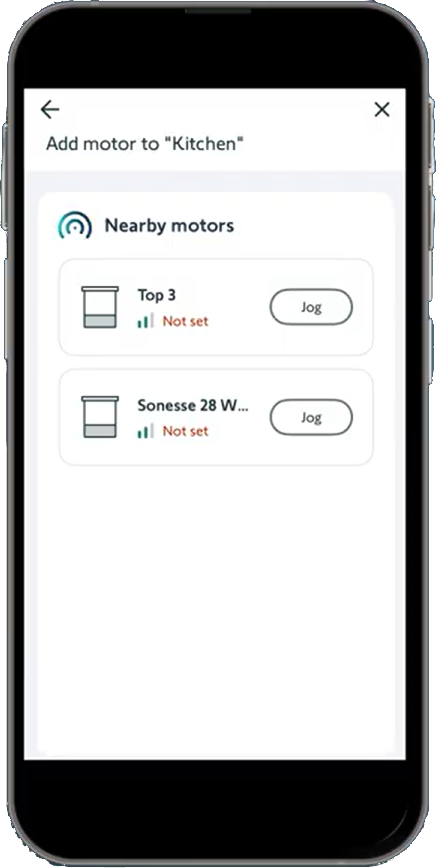 The 'Jog' button next to the name allows you to visually identify which motor you are selecting. 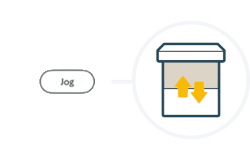
2. Select the desired product 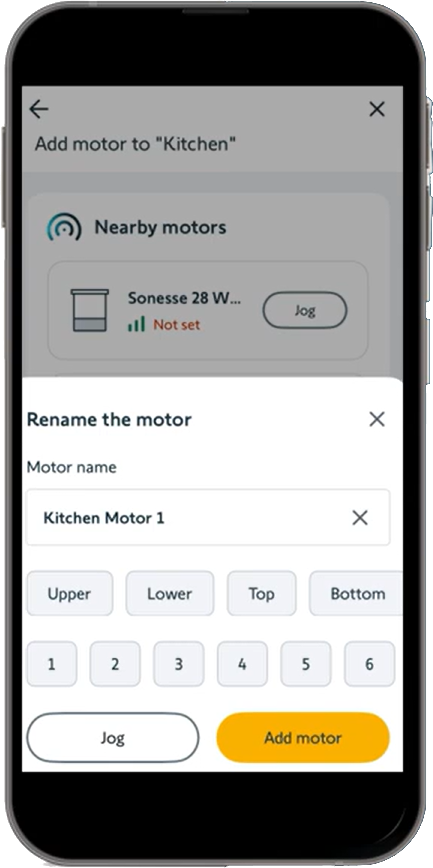 You can rename the motor to make it easier to identify in the room. Then click on, 'Add motor'
3. Slect the application you wish to configure 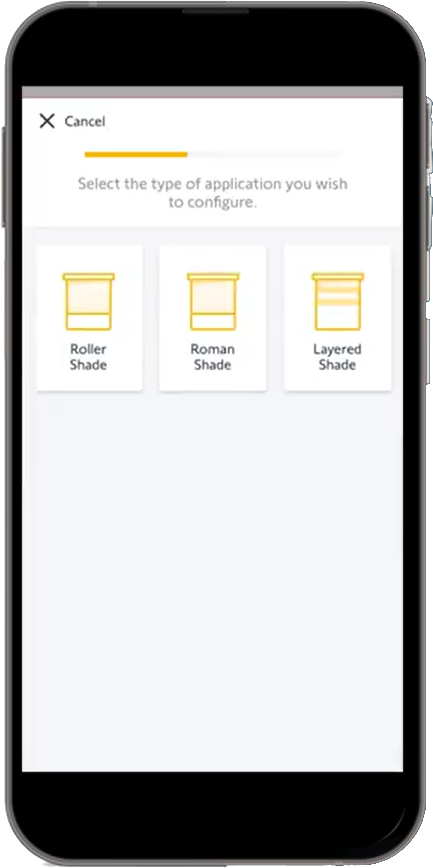
4. Check the rotation direction and reverse it if needed 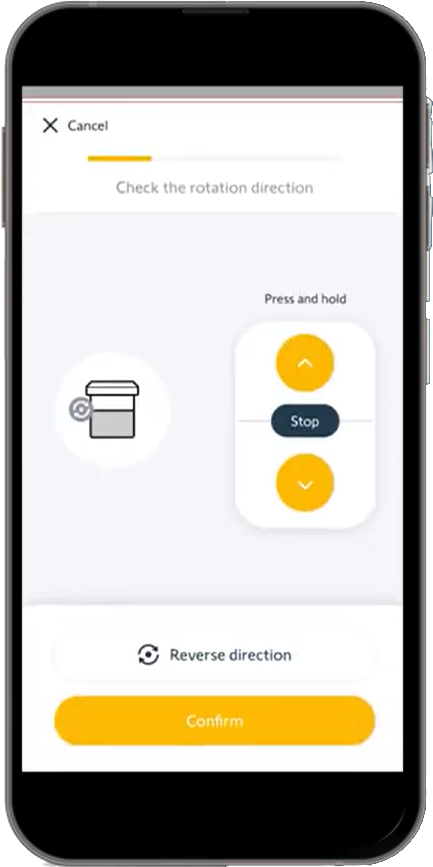
5. Set the upper end limit 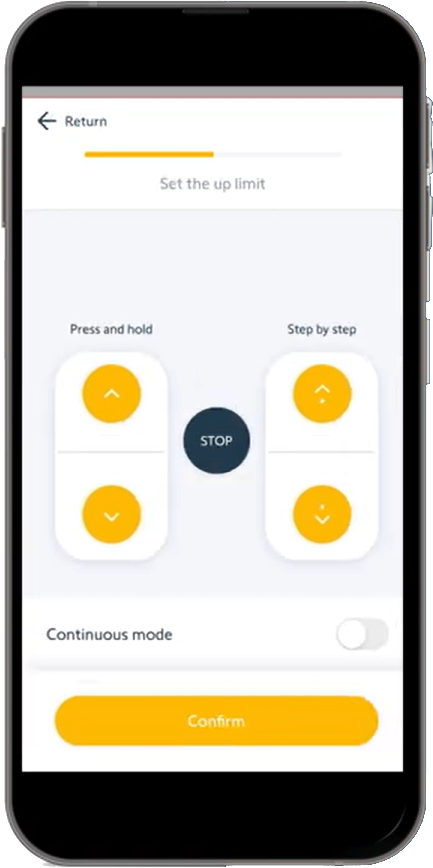
6. Set the lower end limit 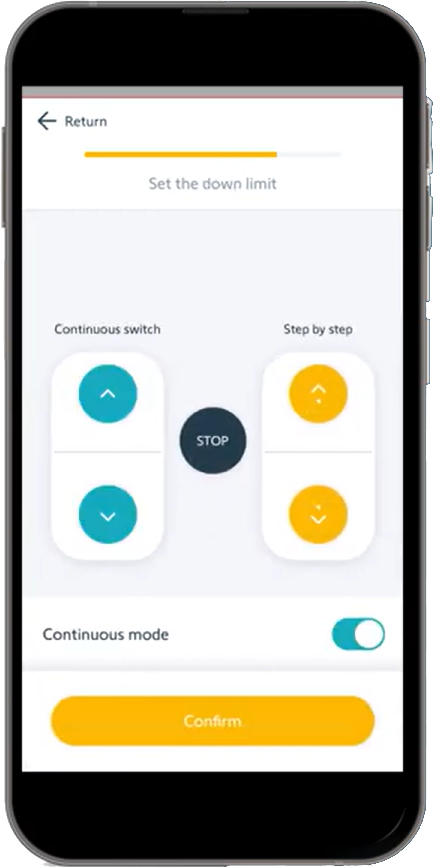
7. Test the product 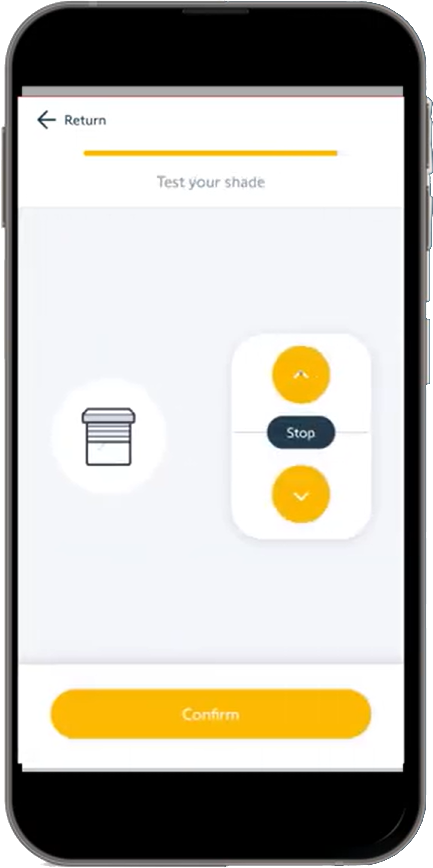 Congratulations, your motor is configured! 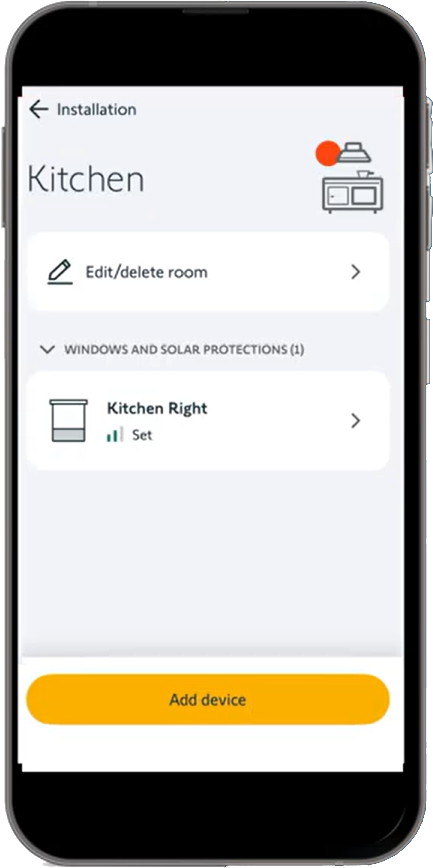
Removing a product via the TaHoma app fully remove it from the Zigbee network. There are two different reset methods: A full motor reset: 12s on the motor head or through the TaHoma pro app erases the motor settings and the media information. The motor is removed from its current Zigbee network and is back to factory mode. A partial reset: 7s on the motor head erases only the media information. The motor is removed from its current Zigbee network and Motor settings are preserved. It would display the disconnected device on the App with exclamation point "!"
Video procedure: Step by step procedure:
We consider the motor as set and in a room and already paired to a remote.
1. Click on, 'Add device', then click on 'Add remote' 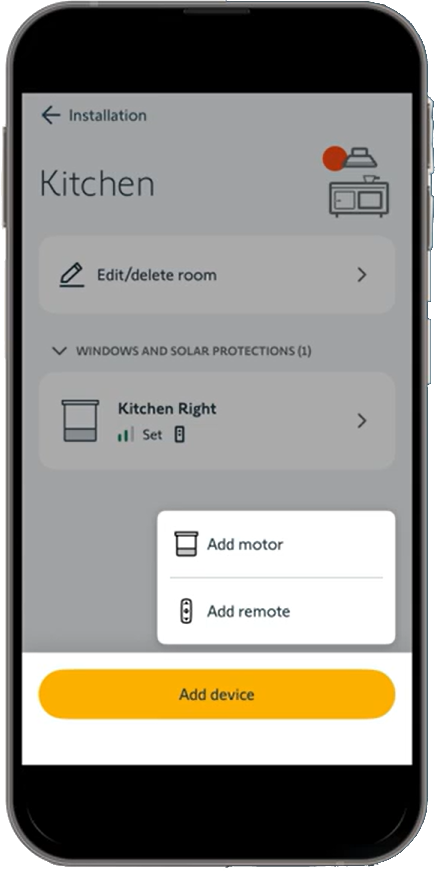
2. Identify the right remote and click on 'Add' 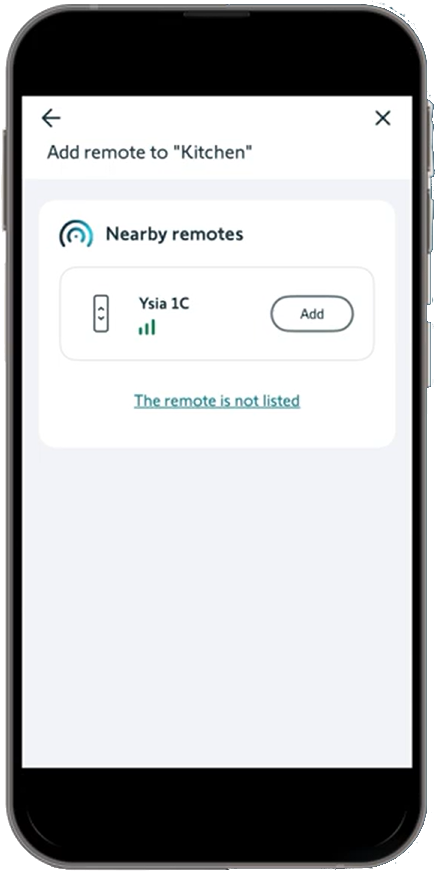 The 'Blink' button allos you to viually identify which remote you are selecting
3. Rename the remote and click on 'Add remote' 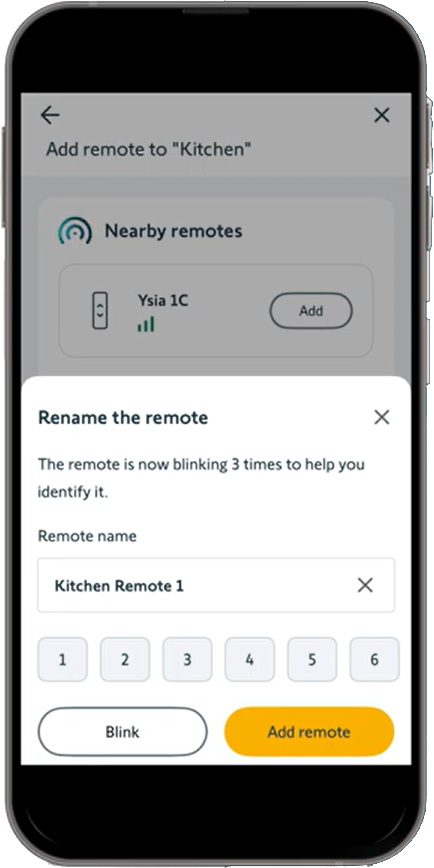
4. Choose which motors you want to pair the remote control with an click on 'Synchronize' 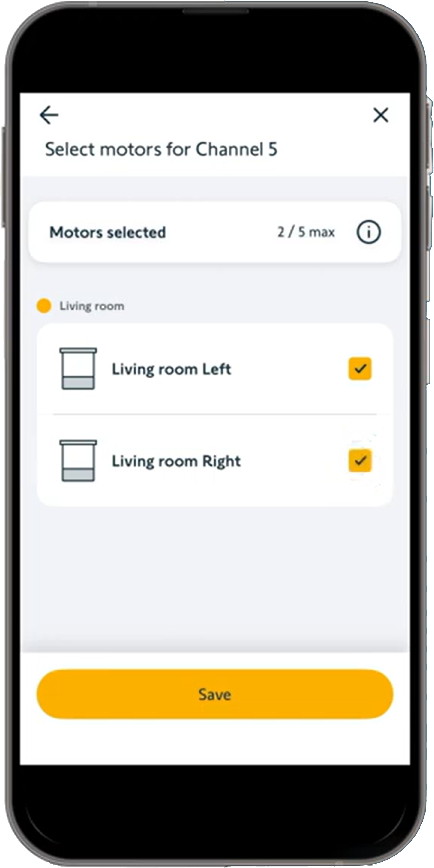 Each remote control channel can support up to 5 motors Congratulations, your remote is configured! 
Video procedure: Step by step procedure:
We consider the motor as set and in a room but not paired to any remote.
1. Click on, 'Add device', then click on 'Add remote'  A list of available remote in your area appears on the screen via Bluetooth*. *If no remote control appears, click on 'The remote is not listed', additional information is available to help you
2. Identify the right remote and click on 'Add'  The remotes are listed in order of proximity to your location. The 'Blink' button allos you to viually identify which remote you are selecting
3. Rename the remote and click on 'Add remote' 
4. Choose which motor you want to pair the remote control with an click on 'Synchronize' 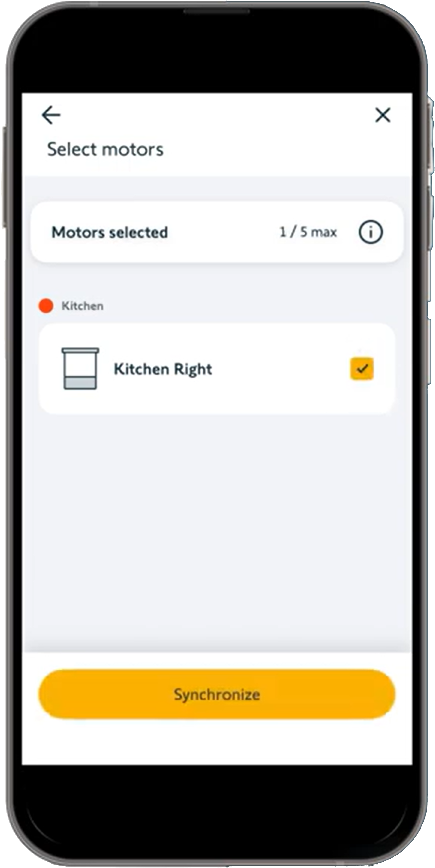 Each remote control channel can support up to 5 motors Congratulations, your remote is configured! 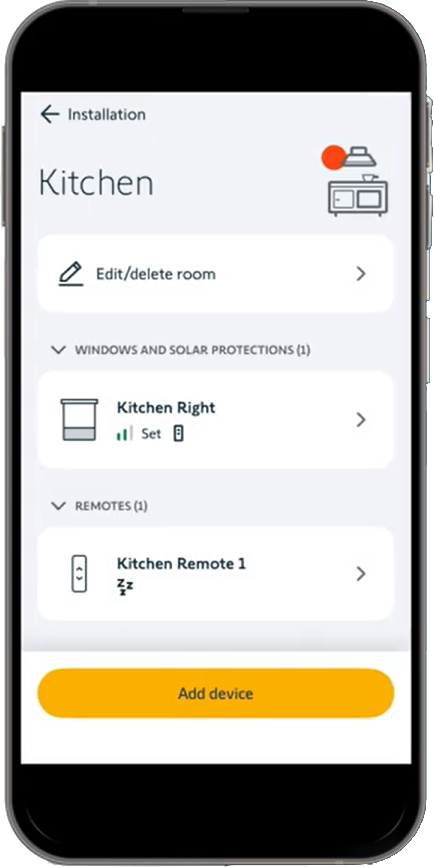
Video procedure: Step by step procedure:
1. Click on, 'Create new installation' 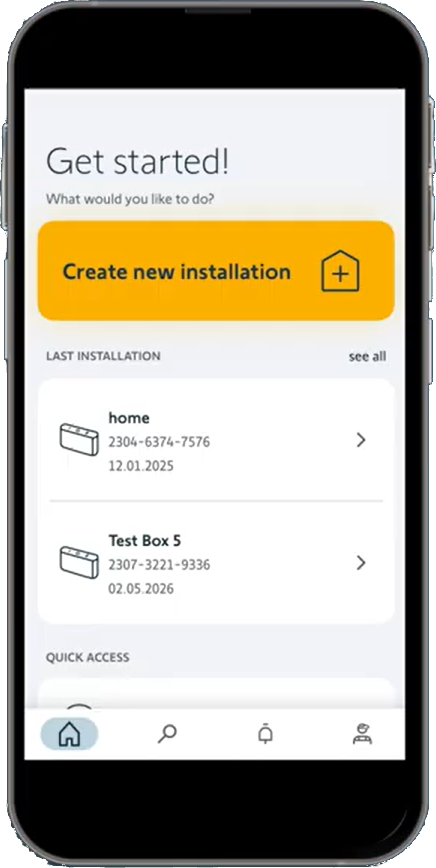
2. click on, 'Zigbee" 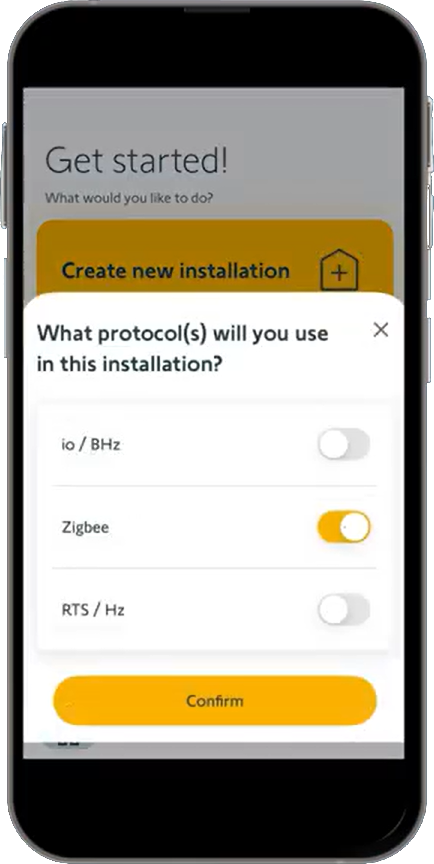 The installation will be done in Zigbee Then confirm.
3. Customize the name of the installation (e.g. the client name, installation date, location, ...) 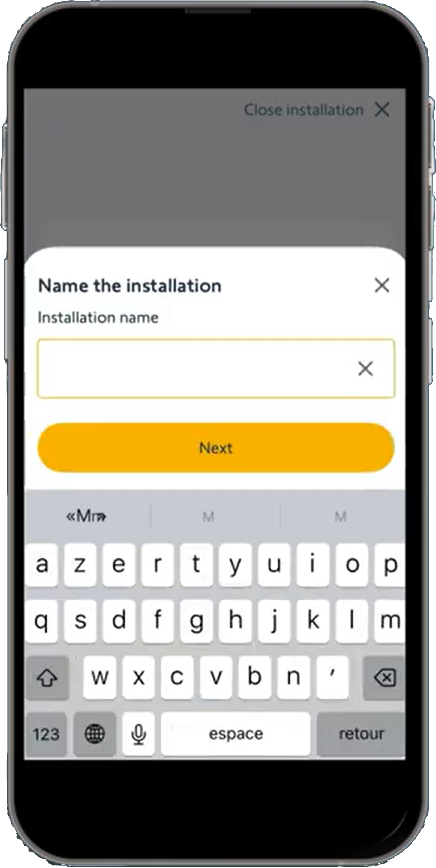
4. Choose to create your first room 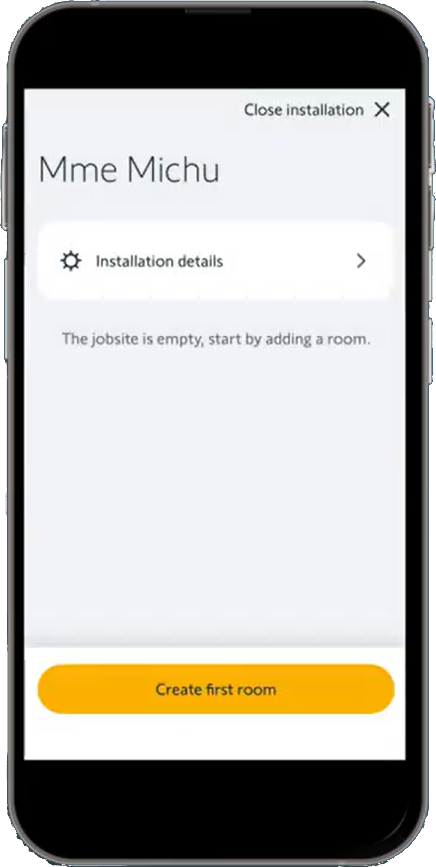
5. Select the first room of your installation (e.g. Kitchen, Bathroom, Office, ...) 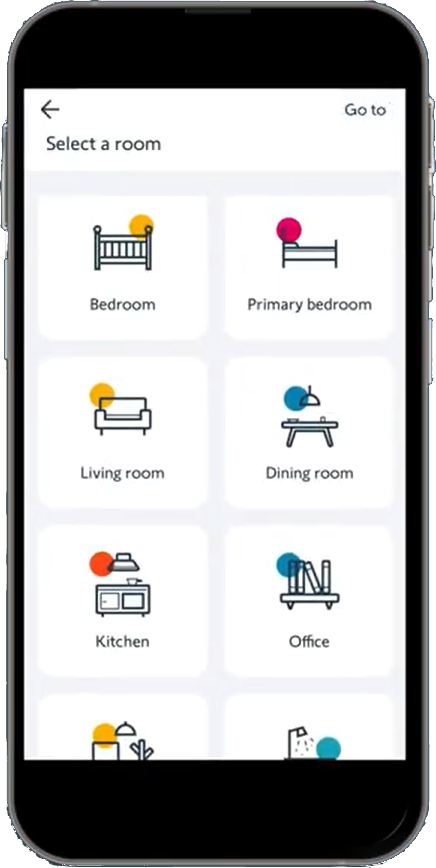
6. Click on, 'Add motor' 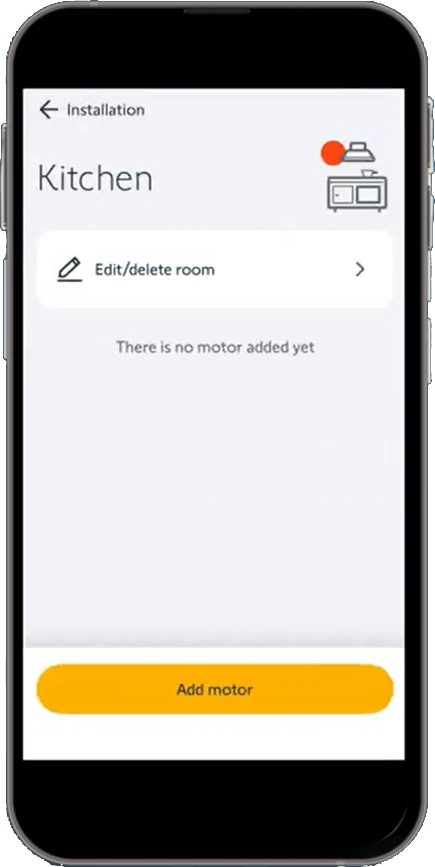
7. Then, you can add desired products to this room 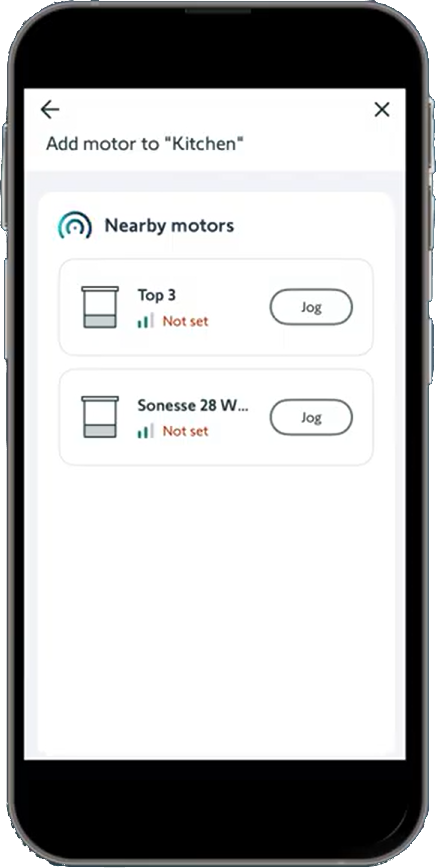 Congratulations, you create a new installation!
Video procedure Step by step procedure:
1. Select the right customer installation 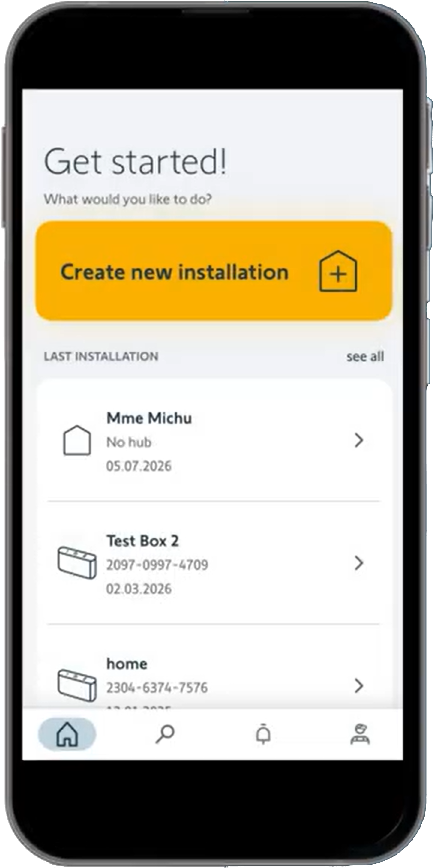 You would like to adjust the limits on your client's account! As an installer, you can easily find your previous installation once you arrive at customer's place.
2. Click on the room where the motor is located 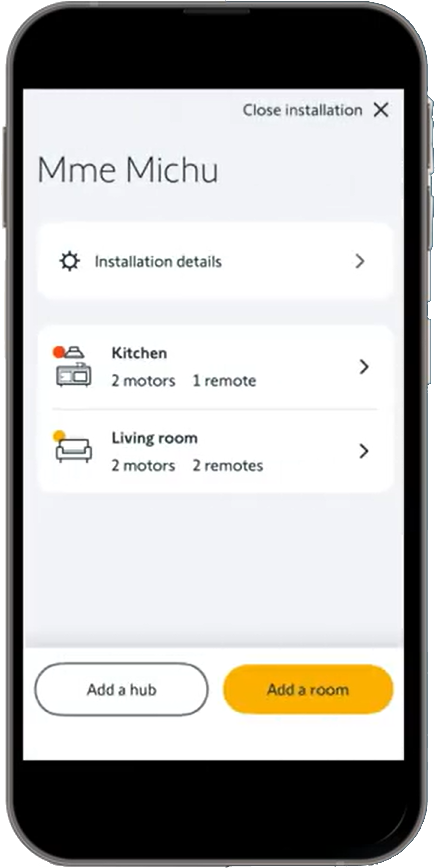
3. Click on the motor that needs to be readjusted In this case, we want to readjust a roller blind. 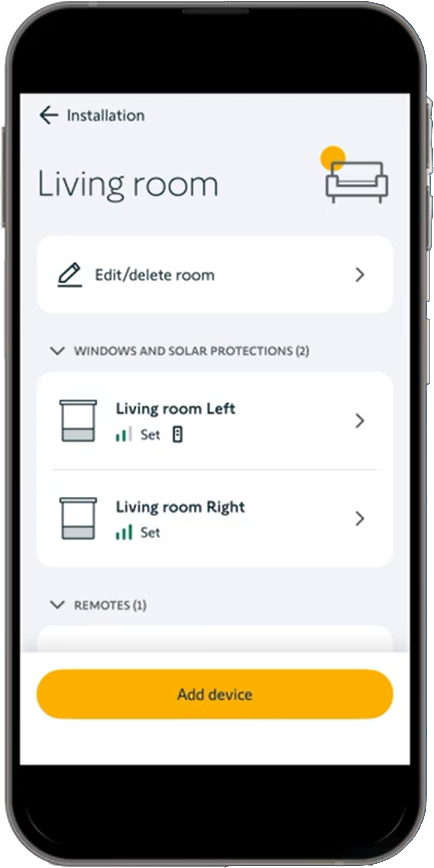
4. Click on 'Set the equipment' 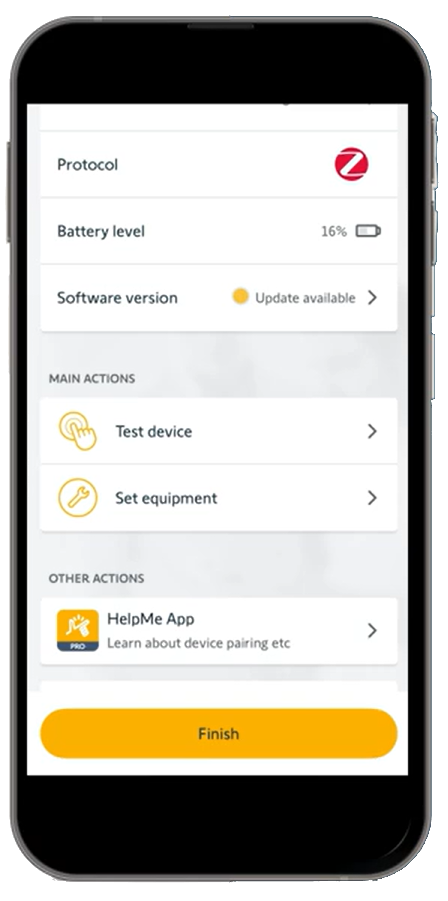
5. Select the setting to adjust 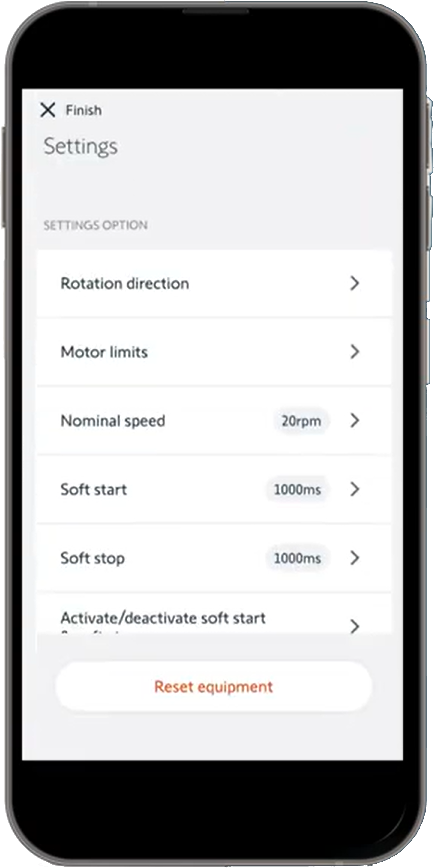
As an installer, you can modify several settings, depending on the motor:
Rotation direction Check the rotation direction and change it if needed 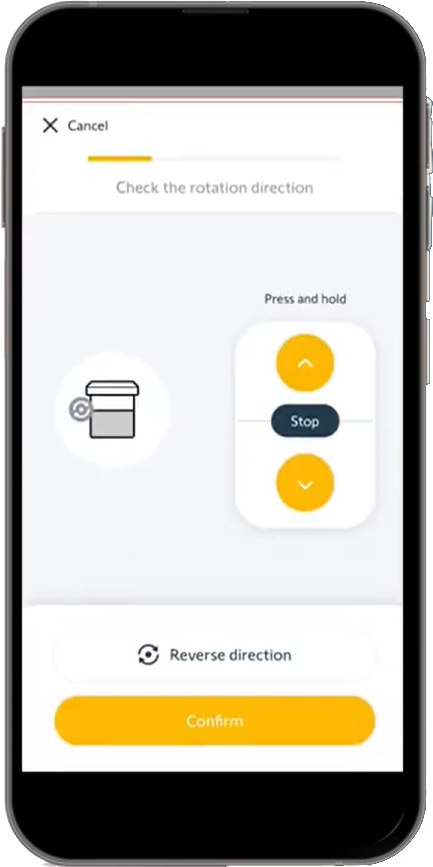 Motor limits
1. Select the limit you want to adjust 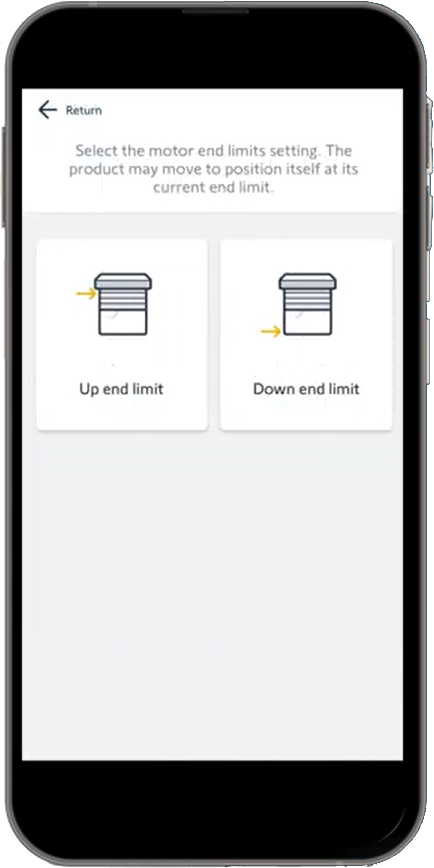
2. Adjust the limit and 'Confirm' 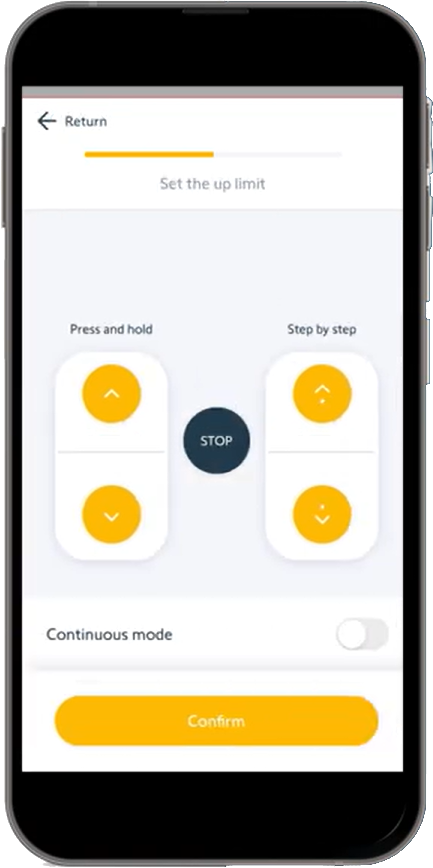 Nominal speed Adjust the Nominal speed Soft start Adjust the soft start Soft stop Adjust the soft stop Activate / Desactivate soft start & soft stop Choose to activate or deactivate soft start or soft stop. 'My' favorite position Select the desired favorite position and 'Confirm' 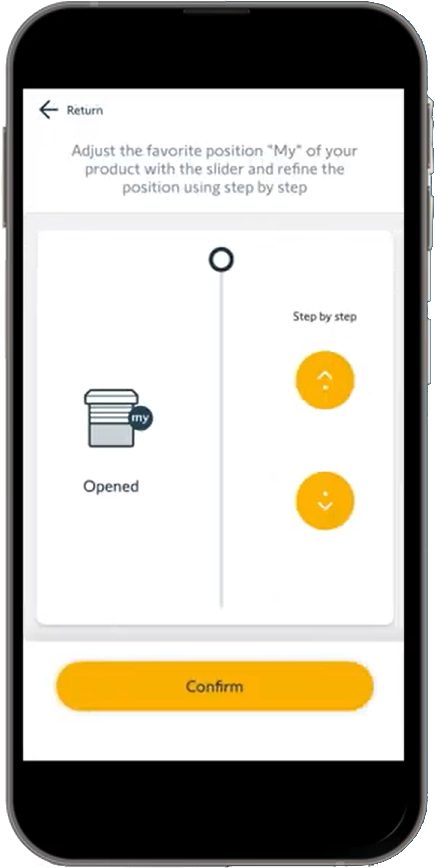
6. Close the settings and click on 'Finish' to save the changes 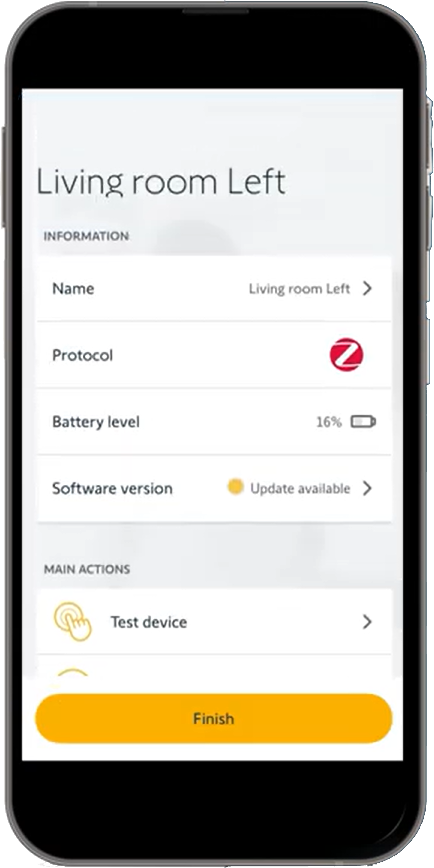 Congratulations, you adjust motor limits with TaHoma pro app!
Video procedure: Step by step procedure
We consider the motor as set and the TaHoma switch as connected to the internet and linked to my account
1. Click on 'Add a device'
2. Select the device to add In our situation, the device to add is an Ysia which is part of the Somfy control devices. The next page explains the order you must respect to add several devices: Wired devices Wirefree devices Remote controls
3. Scan the QR Code on the back of the Ysia Zigbee Insert the batteries in the Ysia if not done yet.
4. Press and hold 7 seconds the PROG button of the Ysia until the second red LED feedback The pairing process may take up to 40 seconds.
5. The remote control has been found and added to the Tahoma switch You can rename the Ysia
6. Click on the '...' menu, in 'Zigbee controls' item, you can find the Ysia just added. Choose it
7. From here you can add the Zigbee devices that Ysia will control. If several devices are part of the TaHoma switch ecosystem, you can link the Ysia to them to create a group command.
8. Briefly press the PROG button of the Ysia to link it with the device(s) The setting is now complete.
 In stand-alone mode (without TaHoma® switch), the communication protocol between the remote control and the motor is Bluetooth (BLE). Consequently, given the [radio range of this protocol,](assistance?question=what-is-the-bluetooth-radio-range) we recommend controlling a maximum of 5 motors per remote channel. If you want to control more devices and/or operate them across different rooms, you will need to get TaHoma switch to upgrade to connected mode.
Video procedure: Step by step procedure
We consider the motor as set and the TaHoma switch as connected to the internet and linked to my account
1. Click on 'Add a device'
2. Select the device to add In our situation, the device to add is an interior roller shade which is part of the window covering devices.
3. Choose the remote control used in the ecosystem and scan the QR Code on the back of it In our situation, the control is Ysia Zigbee wich is a 'Remote control' The next page explains the order you must respect to add several devices: Wired devices Wirefree devices Remote controls
4. Scan the QR code of the motor The motor must be powered or awoken. The pairing process may take up to 40 seconds.
5. The motor has been found and added to the Tahoma switch You can rename the motor and associate it to a room of your home. The setting is now complete.
 In stand-alone mode (without TaHoma® switch), the communication protocol between the remote control and the motor is Bluetooth (BLE). Up to 16 remote controls can be bound to a BLE/Zigbee motor.
Video procedure Step by step procedure:  As an installer, you can easily find your previous installation once you arrive at customer's place. You have two options for finding your indtallation: Select it directly from the home page under 'Last installation' In the tab bar, you can search for the name of the installation directly by typing it in the field You will be able to access the previously installed products again via Bluetooth connection
It will depend of the configuration of your Somfy Zigbee system. With a TaHoma switch: If wired motor (AC): the remote can send commands directly to the motor or through an other router or the switch if too far. If Wirefree motors (SED): the remotes always send a command through a router or the switch. Without TaHoma switch (standalone): The remotes always send commands directly to the motor (Wirefree or AC)
If you are experiencing an issue with a first-generation Somfy Zigbee motor that requires a replacement, from an installation standpoint, replacing an older motor with a new one is seamless, as it fits perfectly in the exact same spot. However, you may encounter compatibility issues with the remote controls: If the installation is equipped with a Zigbee bridge such as TaHoma® switch, there won't be any compatibility issues, the new motors and the old remote controls will communicate each other through the hub. Without a hub, stand-alone mode, the old remotes must be replaced by new remotes.
A customer who already has first-generation Somfy Zigbee motors wants to add new ones, and you need to know if this could cause compatibility issues between the two versions. If he is equipped with a Zigbee bridge such as TaHoma® switch, there won't be any compatibility issues. Just like the older equipment, the new motors and remote controls will communicate with each other through the hub. However, if the system operates in stand-alone mode (without a Zigbee bridge), older remotes will not be able to communicate with the new motors. In this case, you have two options: Replace the older remotes with the new models. Install a TaHoma switch, to ensure cross-compatibility between equipment from different versions.
The system will continue working for a while if there are [Routers](assistance?question=what-is-a-router-in-the-zigbee-ecosystem-and-what-are-its-features ) in the system (AC devices). Should be considered as a temporary situation.